

Dashboard (00)
The Dashboard is the first screen when ForgeAI launches. It shows current system status, loaded model info, and provides quick access to every module with real-time activity tracking.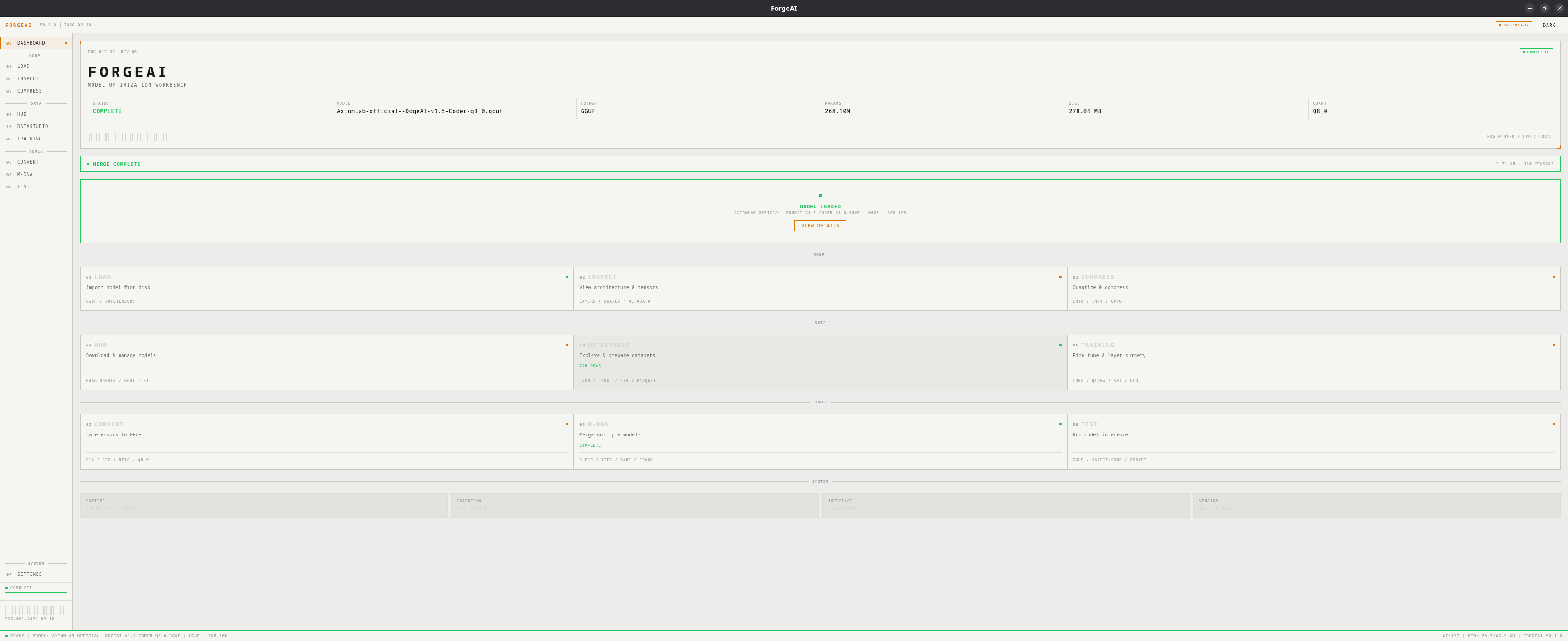
System Status Banner
Displays the ForgeAI brand and a live specs grid:Module Groups
Modules are organized into three groups matching the sidebar:
Each module card shows:
- Module code and name
- Short description
- Supported formats/operations
- Current status badge (ready / awaiting / active)
Live Activity Badges
When background tasks are running, module cards show real-time activity:
Click any module card to navigate directly to it.
Status Bar
Persistent across all screens at the bottom of the app:- Left: current state indicator, loaded model name, format, parameters
- Right: CPU cores/threads, memory usage, version info
- Status bar border color changes: blue during active tasks, green on success, red on error