

Training (06)
The Training module provides two modes: Fine-Tune for GPU-accelerated model training, and Layer Surgery for pure-Rust tensor operations that don’t require Python or a GPU.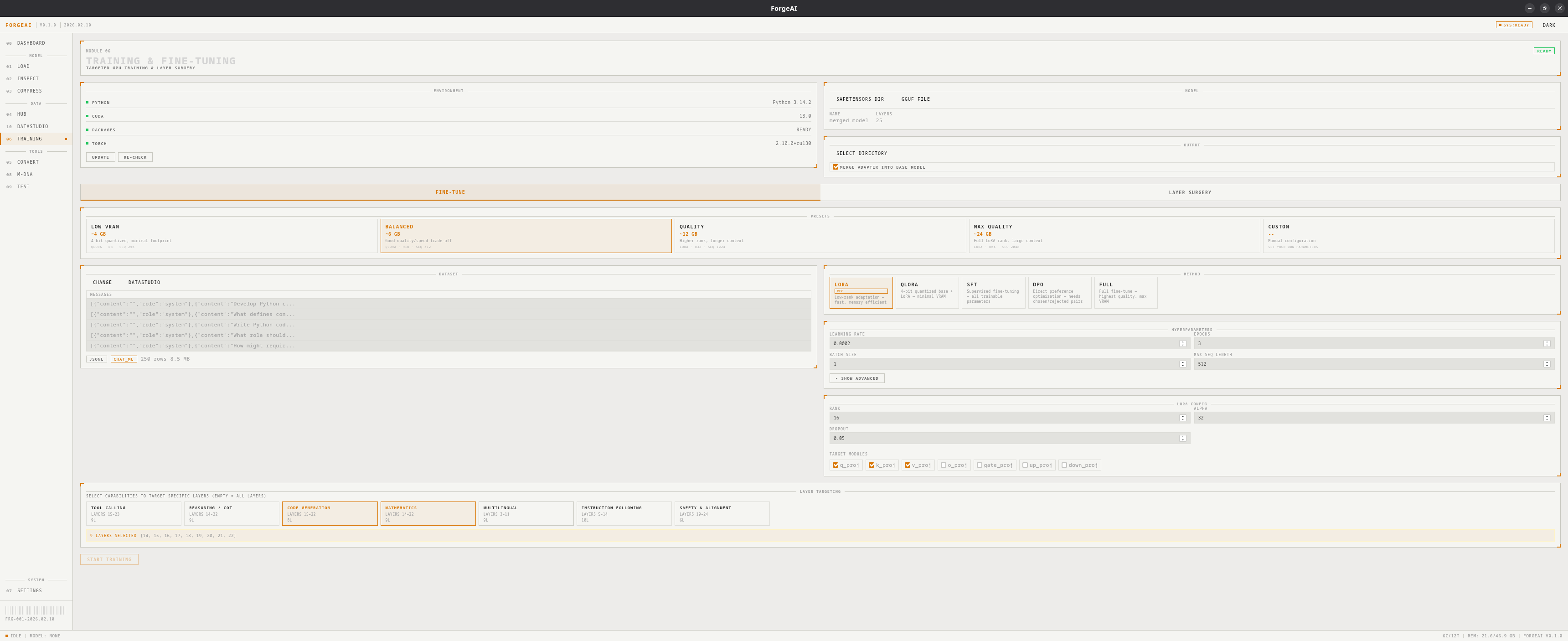
Fine-tuning requires Python 3.10+ and a one-time environment setup. Layer surgery works immediately with no dependencies.
Fine-Tune Mode
Training Methods
VRAM Presets
LOW VRAM
~4 GB — QLoRA, rank 8, 256 seq length
BALANCED
~6 GB — QLoRA, rank 16, 512 seq length
QUALITY
~12 GB — LoRA, rank 32, 1024 seq length
MAX QUALITY
~24 GB — LoRA, rank 64, 2048 seq length
Hyperparameters
Full control over all training parameters:Capability-Targeted Layer Selection
Instead of fine-tuning all layers, target specific model capabilities:Target Module Detection
ForgeAI auto-detects available LoRA target modules from the model architecture:Dataset Support
- Auto-detection of templates: Alpaca, ShareGPT, ChatML, DPO pairs, Text, Prompt/Completion
- Formats: JSON, JSONL, CSV, Parquet
- Preview: View dataset rows and column structure before training
Live Training Dashboard
During training, a real-time dashboard shows:- Epoch and step progress
- Loss value with step-by-step loss history
- Learning rate (with warmup visualization)
- GPU VRAM usage
- ETA / time remaining
- Option to merge adapter back into base model after completion
Workflow
1
Setup environment
First time only: ForgeAI checks for Python, creates a venv, installs PyTorch + PEFT + TRL.
2
Select model
Browse for a GGUF or SafeTensors model (or folder).
3
Select dataset
Browse for a training dataset. ForgeAI auto-detects format and template.
4
Choose method and preset
Pick a training method and VRAM preset. Optionally target specific capabilities.
5
Train
Click START TRAINING and monitor real-time progress.
Layer Surgery Mode
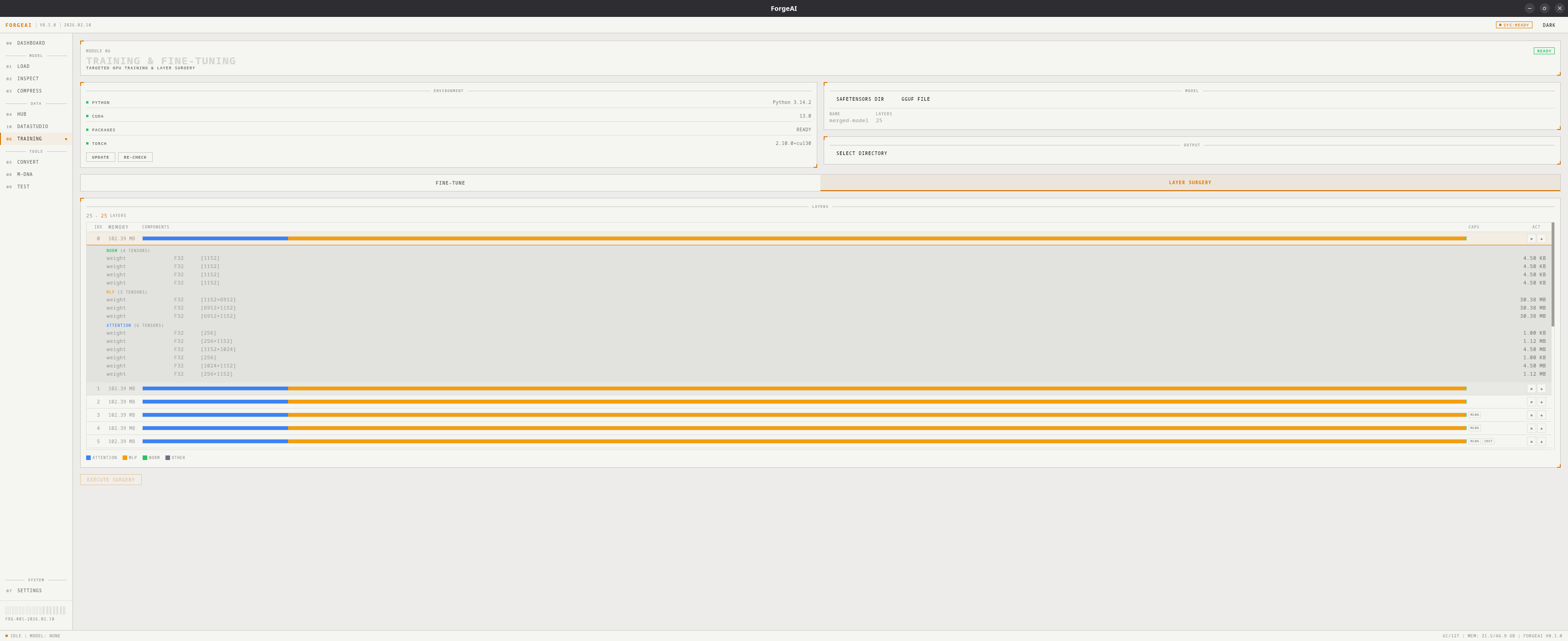
Operations
Features
- Rich Layer Table — memory breakdown per layer with component bars (attention/MLP/norm %)
- Tensor-Level Inspection — expand any layer to see every tensor’s dtype, shape, and memory
- Surgery Preview — shows final layer count before execution
- Format Support — works with both SafeTensors directories and GGUF files
- Auto-Update — automatically updates
config.json/ GGUF metadata with new layer counts
Workflow
1
Select model
Browse for a GGUF file or SafeTensors folder
2
Load layer details
Click LOAD LAYER DETAILS to see all layers with tensor-level breakdown
3
Select operations
Check layers to remove, or add layers to duplicate at specific positions
4
Execute
Click RUN SURGERY. The output is a new model file — the original is never modified.